Getting started with PurpleTRAC
Step-by-step login instructions
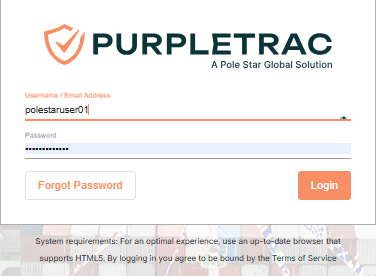
To log in to PurpleTRAC:
- Go to purpletrac.com
- Enter your username and password
- Click Login
NOTE: If Multi-Factor Authentication (MFA) is enabled on your account, you will also be asked to enter an MFA code.
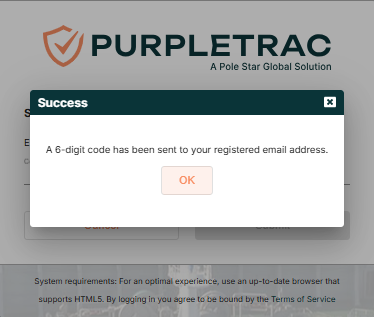
• Check the email address associated with your account
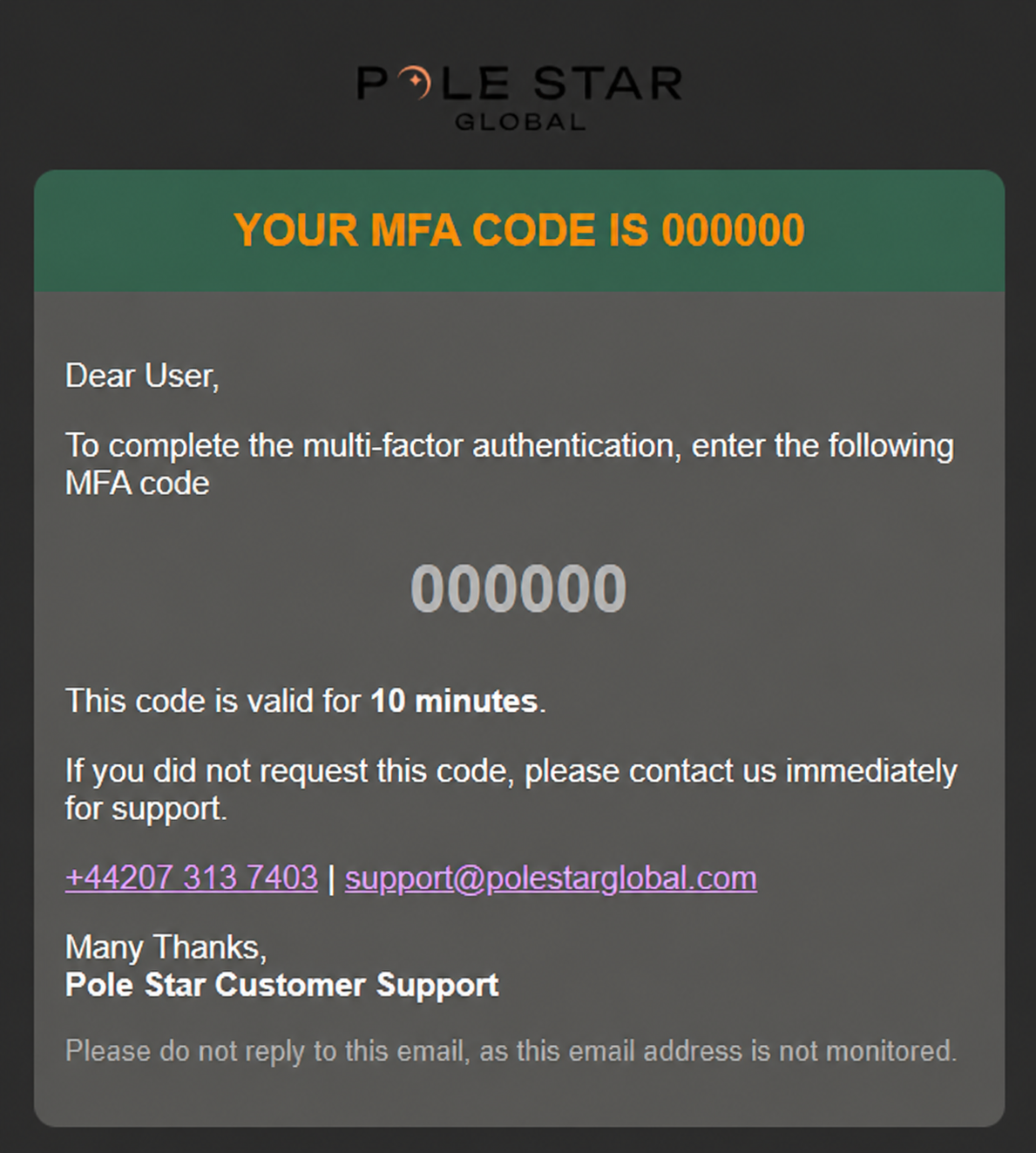
• Enter the MFA code sent to your email.
Once the code is confirmed, you will be able to access your PurpleTRAC profile
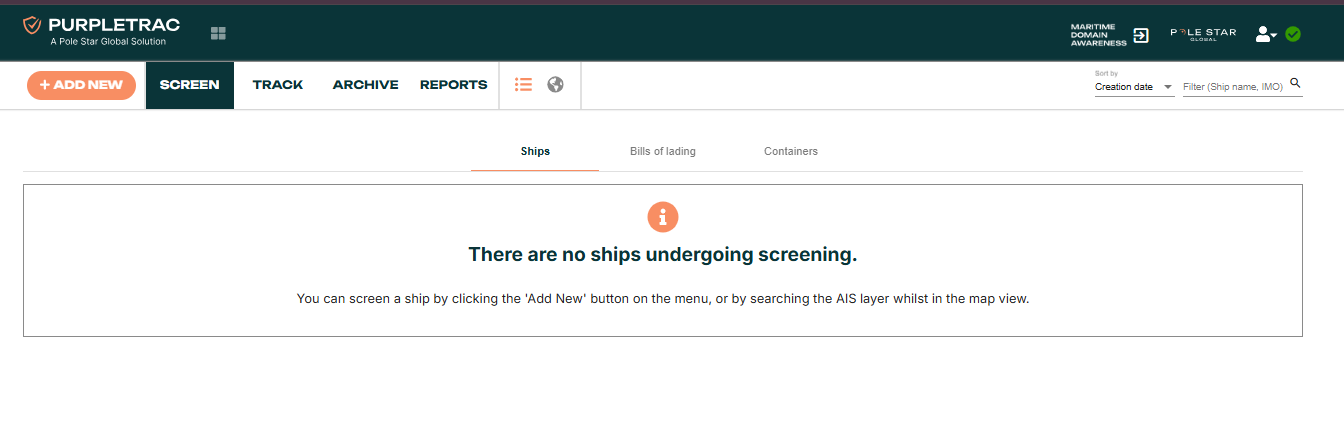 How to change your password via Settings
Once logged in, you can change your password at any time through Settings by clicking the user icon in the top-right corner of the screen.
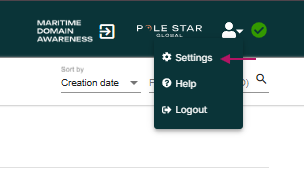
• Click the Settings tab
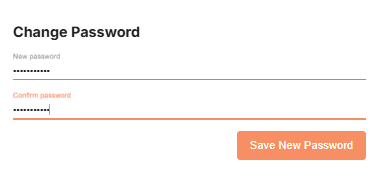
• Scroll down to the final section where the Change Password option appears, then click Save New Password.
Depending on your user profile, you may be able to:
- Screen ships
- Add new ships
- Add traders and view their screening and tracking activity
Add Trader
(Applies to Division manager and Account admin profile)
On the main page, click the Add Trader button in the top-left corner.
- Enter the trader’s first name, last name, and email address.
- Click Add Trader to save the new trader.
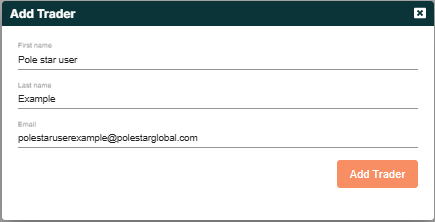
This will create a new trader whose activities will be visible to you.
Settings
Hover over the user icon at the top right hand corner of the screen to find ‘Settings’
Here you can:

- Update your contact information
- Manage notification settings
- Change your password
After making any changes, click Save Settings.
Tip: Make sure your contact details, including your email address, additional emails and phone number, are correct. Pole Star customer support may use these details to contact you when necessary.
Notifications 
(Applies to Account admin profile)
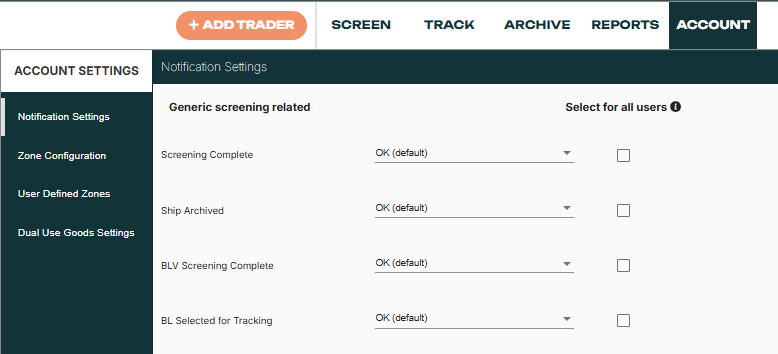
- PurpleTRAC automatically sends email notifications for all status events by default. If you wish to opt out of these notifications, simply uncheck the checkbox.
- You can add extra recipients to receive notifications. Please note that all selected notifications will be sent to every recipient added.
- The Account Admin has the ability to manage and adjust the severity level of each notification by navigating to the Account tab on the dashboard and accessing Notification Settings.